Quick answer
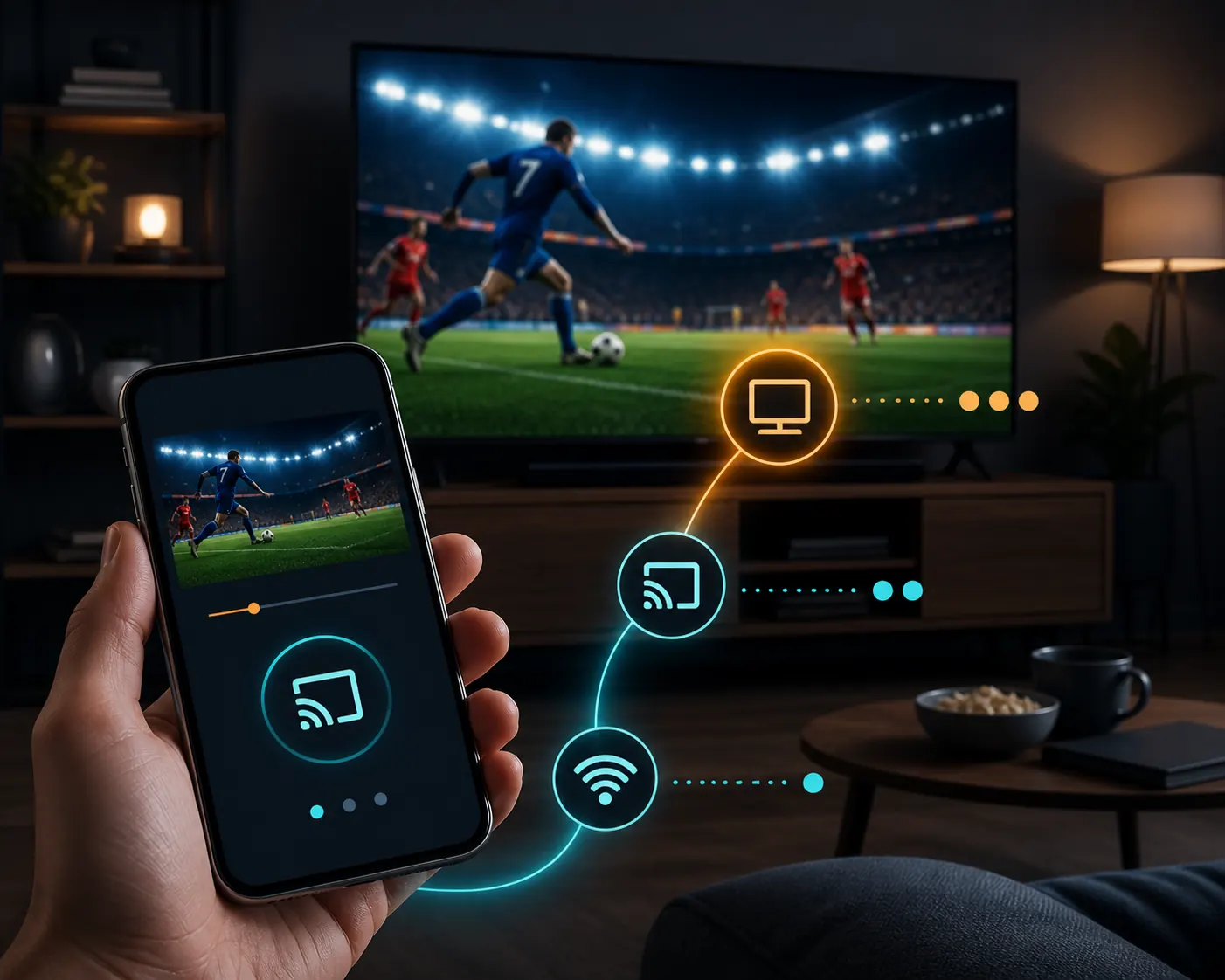
Connect Chromecast, the TV and the source device to the same Wi-Fi network. On a computer, open the page in Chrome and choose More > Cast, save, and share > Cast; on a phone, use the Cast icon or a supported screen-sharing feature. If the receiver is missing, check the network and updates. If the picture is black, try another trusted source, player or HDMI input; do not install an APK for Chromecast.
What watching Futbol Libre Chromecast actually means
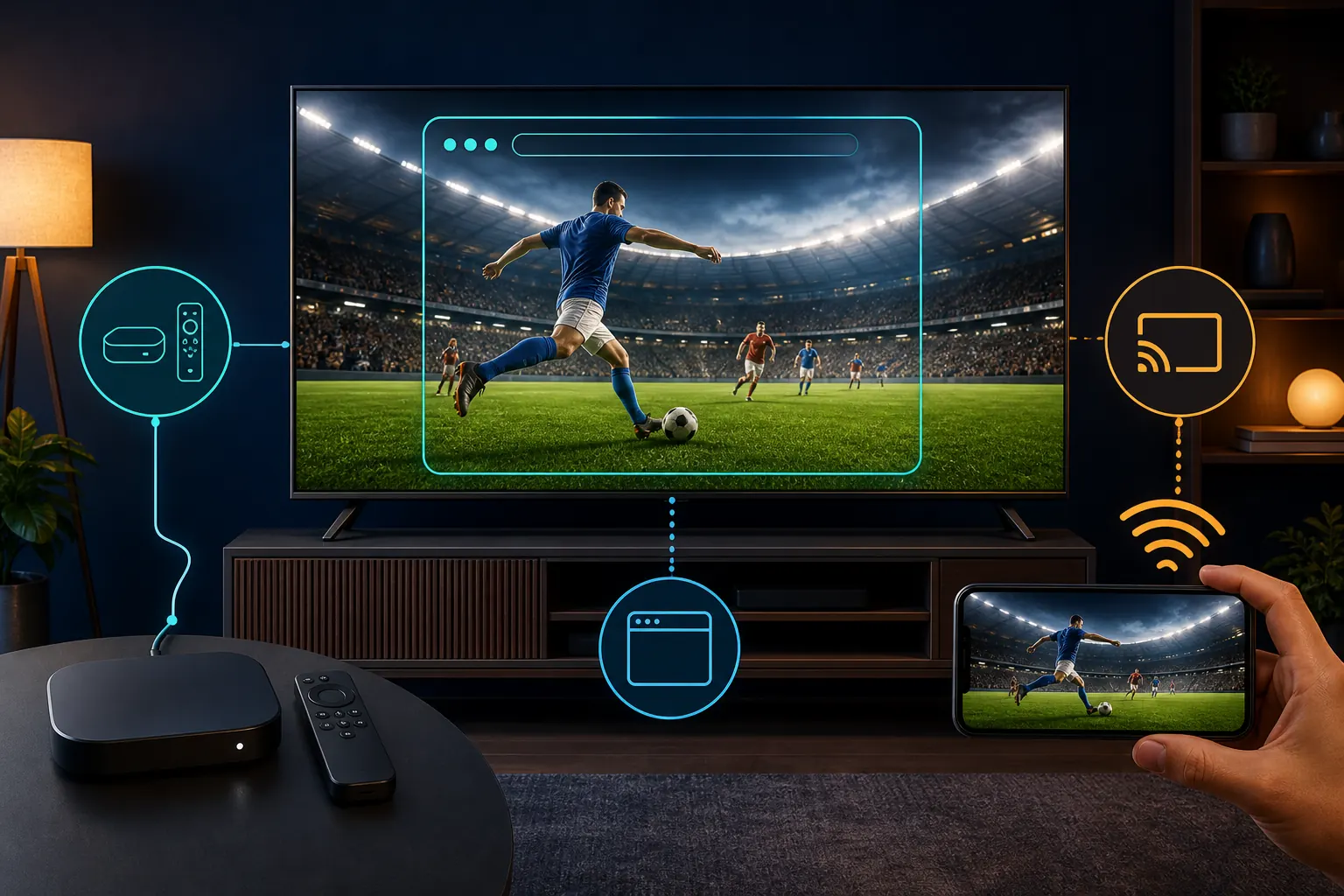
The query Futbol Libre Chromecast describes a specific action: open a page on a phone or computer and view it on a larger screen. Chromecast receives the tab, screen or compatible media you send; it does not turn a website into an Android TV app. The source device, browser, Wi-Fi and player remain part of the experience. Choose between a Chrome tab, phone mirroring and the TV browser before looking for an APK.
| Route | Input | Output | Typical limit |
|---|---|---|---|
| Chrome tab | Computer and Chrome | One tab appears on the TV | Same Wi-Fi and current Chrome are required |
| Phone mirroring | Compatible Android or iPhone | The phone screen is reflected | Notifications and delay may appear |
| Cast-enabled player | A page that supports Google Cast | Video plays on the receiver | Many players do not expose a Cast icon |
| TV browser | Smart TV browser | The page opens on the TV | The browser may block the player |
Before you start: Chromecast, TV and Wi-Fi
Google says the computer and Google Cast device need a stable connection on the same Wi-Fi network. Check the HDMI input, power and Google Home discovery. A guest network, isolated extender or VPN can stop devices from finding each other even when both have Internet. The source device must open the page normally; do not grant accessibility, certificate or extension permissions because a pop-up asks for them.
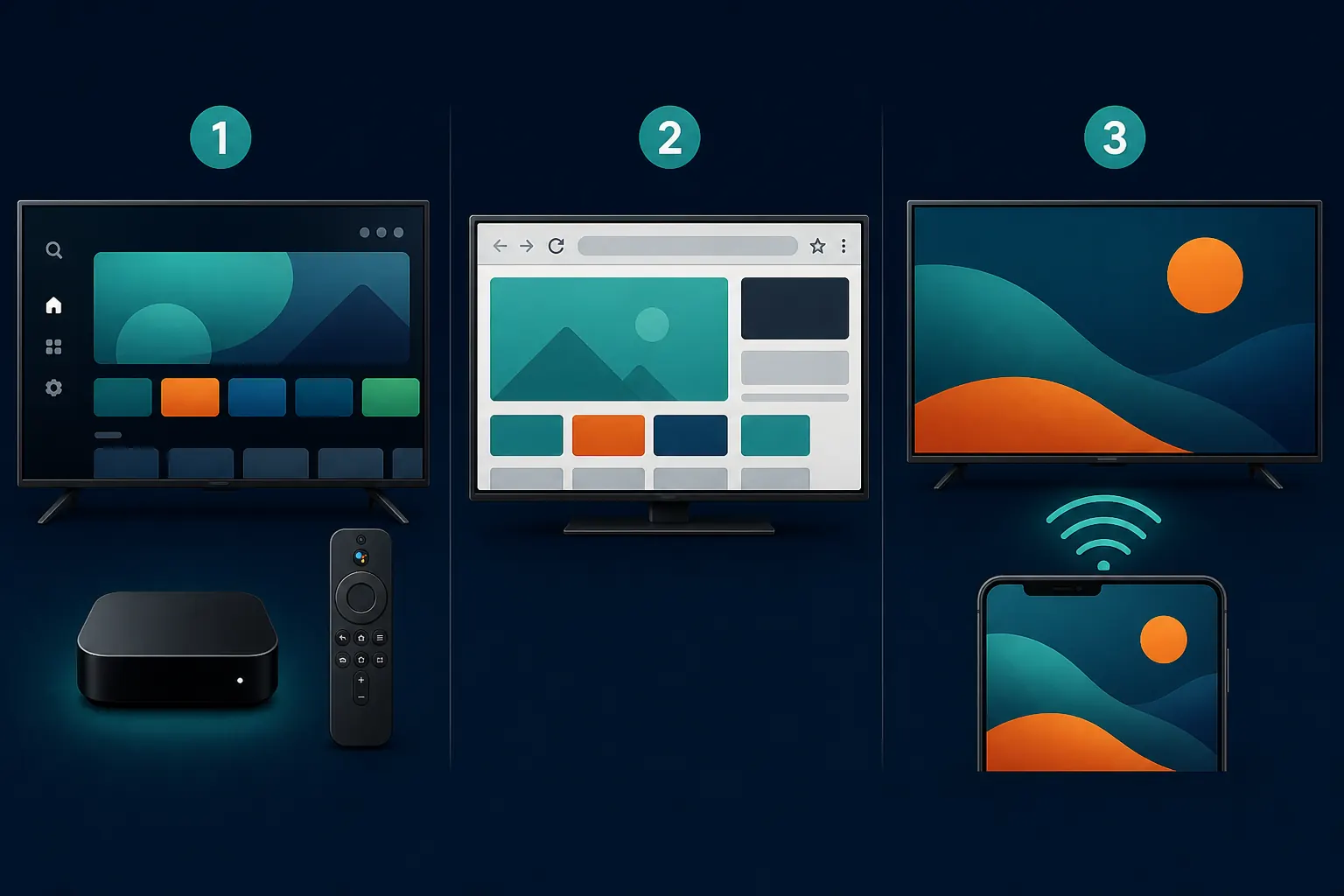
- Turn on the TV, select the Chromecast HDMI input and confirm that its home screen is visible.
- Connect Chromecast and the source device to the same Wi-Fi name, not merely the same router.
- Temporarily disable a guest network or VPN if the receiver is missing, then restore it if needed.
- Update Chrome, Google Home and the receiver from their official sources.
- Test a known page first so you can separate a network problem from a player problem.
Method 1: cast a Chrome tab from a computer
This is the most controllable route when the page works on a computer. Google's official help uses More > Cast, save, and share > Cast and lets you choose a receiver. The tab remains visible on the computer and TV, and its audio can play through the television. Use a clean browser window, avoid links that change domains or start downloads, and remember that Chromecast does not verify the source of the content.
- Open Chrome on Windows, macOS or Chromebook and load the page you want to review.
- Open the three-dot menu and choose Cast, save, and share > Cast.
- Select your Chromecast or Google TV receiver; an active session may be replaced.
- Check picture, audio and aspect ratio while keeping the tab open.
- End the session from the Cast icon beside the address bar and choose Stop casting.
Technical source
- Google Help: cast from Chrome to your TV - Covers network requirements, tab casting and stopping a cast.
Method 2: mirror a phone screen
On Android, mirroring may be called Cast or Screen share depending on the manufacturer. On iPhone, support depends on AirPlay, the app and the receiver; not every website offers direct Google Cast. Mirroring is useful for a short session but can show notifications and keep the phone busy. Turn on Do Not Disturb, lock orientation if the picture rotates, and never install profiles, codecs or players unrelated to casting.
- Put the phone and Chromecast on the same Wi-Fi network and close other casting sessions.
- Open the browser or app that contains the page and review the address before playing.
- Tap the Cast icon or open the phone's quick panel and choose the supported screen-sharing option.
- Select the correct receiver, wait for the connection and check that audio reaches the TV.
- Stop mirroring from the same system panel before closing the app or turning off the screen.
When Chromecast is missing or the screen is black
A black screen does not prove that an APK version is missing. It can come from an isolated network, an incompatible browser, a protected player window or a busy receiver. Change one variable at a time and keep the error message. User discussions also report Smart TV player compatibility problems and suggest casting from a phone, computer or Chromecast; that is a compatibility clue, not a guarantee for a specific site.
| Symptom | Low-risk check | Avoid |
|---|---|---|
| Receiver is missing | Same Wi-Fi, router restart and updated Google Home | Guest networks or unknown apps |
| Connection stops | Move closer to the router, pause other traffic and test a known page | Changing several APKs at once |
| Black screen | Check HDMI and try another player option or test tab | Random codecs, certificates or extensions |
| No audio | Cast the tab, raise TV volume and check the output | Assuming Chromecast is broken |
| Picture is cropped | Lock orientation and check aspect ratio | Forcing unsupported resolutions |
Audio, controls and privacy during a cast
When you cast a tab, that tab's audio can play on the TV while other applications continue to play on the computer. Screen mirroring behaves differently by system. Run a short test and remember that the phone or computer remains the session source: close chats, passwords and private tabs, reject unexpected forms and pop-ups, and do not assume that Chromecast makes an unverified website official.
- Enable Do Not Disturb and close tabs with private information before mirroring.
- Check the TV, receiver and source volume so there is one clear audio output.
- Cast one Chrome tab instead of the whole screen when that limits data exposure.
- Stop and disconnect the session from the Cast menu when you finish.
Chromecast, Google TV, Smart TV and Roku: choose a route
Chromecast receives content from another device. Google TV may add its own apps and browser, but its requirements differ from a classic Chromecast. Tizen and webOS can accept casting even though they cannot install an Android APK, and Roku has its own channel system. For a web page, start with a Chrome tab, phone casting or a compatible browser; for an app, check the device system and official source instead of mixing Android TV, Fire TV, Roku and Chromecast instructions.
| Device | Best first attempt | Limit |
|---|---|---|
| Chromecast / Google TV Streamer | Cast a tab or screen from a device on the same Wi-Fi | Depends on browser, receiver and player |
| Google TV / Android TV | Check store, browser and remote compatibility | A mobile APK may not work with a remote |
| Tizen / webOS | Built-in browser or compatible casting | Does not run Android APKs directly |
| Roku TV | Roku-supported channels and features | It is not an Android environment |
| HDMI cable | Connect a computer directly | Needs a cable and free port |
Safety, legality and limits of this guide
Futbol Libre can describe pages, apps or mirrors with similar names. This guide explains casting technology and does not confirm that a source is official, stable or licensed. Legality depends on your country, the content and broadcast rights. There is no universal Futbol Libre version for Chromecast because Chromecast does not install or validate an Android package. Check source, permissions and destination, and stop when a page demands changing domains, urgent codecs or access to contacts, SMS, accessibility or certificates.
Related reading
- Futbol Libre Smart TV: systems and casting - Broad comparison of Android TV, Tizen, webOS, Roku and external devices.
- Futbol Libre online: check the web before installing - Separates browser access, pop-ups and forced downloads.
- Futbol Libre not working: diagnosis - Distinguishes network, player, permission and package issues.
Frequently asked questions
Can I install a Futbol Libre APK on Chromecast?
Do not treat a classic Chromecast as an Android phone. To use Futbol Libre Chromecast, send a tab, screen or compatible media; the receiver does not validate a downloaded APK. Google TV has separate store, package and remote requirements.
How do I watch Futbol Libre Chromecast from a computer?
Connect the computer and Chromecast to the same Wi-Fi, open the page in Chrome, choose More > Cast, save, and share > Cast, and select the receiver. Check picture and audio, then stop casting from the Cast icon.
How do I cast Futbol Libre from a phone?
Use the source's Cast icon or a screen-mirroring feature supported by your phone and TV. Keep both devices on the same network, enable Do Not Disturb and stop the session from the system panel.
Why can I not see my Chromecast?
Check the same Wi-Fi, avoid guest isolation, update Google Home and Chrome, and select the correct HDMI input. Restart the receiver and test a known page before blaming the source.
What should I do if the screen is black?
Check HDMI, audio and network, then try another player option or test tab one change at a time. Do not download codecs, certificates, extensions or unknown APKs to fix an incompatible player.
Does Chromecast make a stream official or legal?
No. Chromecast transports picture and sound. Legitimacy depends on the source, content and rights in your country. Use authorized apps and sports services when reliability and rights matter.
Can Chromecast work with every Smart TV?
A Chromecast receiver can connect to a TV with HDMI, but the experience depends on network, browser and source support. Tizen, webOS and Roku do not become Android systems when Chromecast is attached.